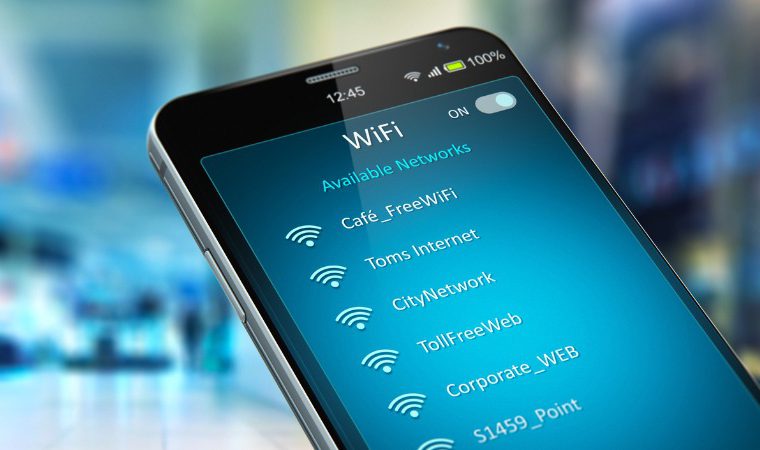
Being connected is no longer a luxury — and there's not always a signal or data plan available when you need it. That's why apps that help find free Wi-Fi networks have become so popular. They work like a collaborative map: users register public access points, rate the speed, and leave comments, and those who arrive later can take advantage of it.
It's worth starting by defining what these apps do and what they don't do. They show open networks — those that the owner deliberately left without a password — and passwords that establishments openly disclose, Not on the menu, on the wall, or on the coupon. What they don't do, and shouldn't do, is give access to third-party private networks: entering someone else's system without authorization is a crime, as stipulated in law. Article 154-A of the Penal Code, with a penalty of 1 to 4 years imprisonment.
How does a collaborative network map work?
The logic is the same as with traffic apps: the value comes from the community. When someone connects to a public hotspot and confirms that it works, that information becomes valid for everyone. That's why coverage is excellent in capital cities and uneven in smaller towns—it depends on how many people have contributed to the database there.
The feature that makes the biggest difference is the offline mapDownloading a city's points of interest beforehand allows you to consult the list precisely when you're offline, which is when the app is most useful. Travelers should download it before leaving home.
What truly exists
Public network mapping applications
They show nearby access points, with speed ratings and user reviews. Some even plot the route to the nearest point and work with a downloaded map. This is the most useful category and the one that saves the most search time.
Your mobile carrier's Wi-Fi
Several carriers offer thousands of public hotspots to customers with active plans, and many people aren't even aware they have this benefit. It's the most stable and secure option on the list—it's worth checking your carrier's app before installing anything else.
Official public networks
City halls, airports, subways, terminals, libraries, and universities maintain open Wi-Fi networks or networks with simple registration. They don't depend on an app and tend to be more reliable than networks registered by third parties.
QR code for sharing
Little-known native feature: Android and iPhone generate a QR code for the network you're connected to, allowing someone else to join without entering a password. It's the correct way to share your own network—the owner remains the one who decides.
The missing warning: an open network is not secure.
On a network without a password, all connected devices share the same environment, and some of the traffic can be observed by anyone who is there. HTTPS scrambles the content of most websites—hence the importance of the padlock in the address bar—but the addresses you visit and certain metadata remain visible.
There is also the fake access point scam: someone creates a network with a name similar to that of the establishment and captures what passes through it. Since anyone can choose the name of their own network, the name is not proof of anything.
- Ask an employee at the location for the exact name of the chain.
- Check the padlock and the website address before entering your password.
- Leave banking, shopping, and registrations for 4G or home.
- Turn off automatic connection to open networks in the settings.
- Use the "forget this network" option when leaving the location.
- Keep your system updated — many attacks exploit vulnerabilities that have already been patched.
Common mistakes
- Install an app that promises to open any network. It's unauthorized access — and, on current routers, it doesn't even work. All that's left is the risk.
- Using your neighbor's network Because the password appeared in some app. It's private.
- Install outside of the official store. Wi-Fi apps request broad permissions; without security review, it's an unnecessary risk.
- Grant permanent location to an app like that. Opt for "only while using".
- Leaving the Wi-Fi on all day. It drains the battery and causes the device to automatically reconnect to old ports.
Alternatives
- Ask for the password at the counter. The most effective and most ignored alternative.
- Cellular access point. Solve it right away, with your own plan.
- System data saving mode. Sometimes the problem isn't a lack of Wi-Fi, it's background data usage.
- Download content at home Maps, music, and episodes—for offline consumption throughout the day.
Why does my cell phone get stuck on a bad network?
This is a scene everyone has experienced: you enter the mall, the Wi-Fi icon lights up, and nothing loads. The device is connected to a network that barely reaches it—and it stubbornly remains there, while 4G would work better. It's not a defect in the phone. It's how the design was implemented.
On Wi-Fi, The device, not the router, decides which network to connect to.. The phone scans the environment, compiles a list of what it sees, and compares it to the networks already saved in its memory. The one it considers most likely to work wins—and the main criterion is... signal strength, which is precisely the number that says the least about internet quality.
Add to that a behavior that engineers call "sticky": switching networks costs a few seconds of interruption, so the system avoids switching. It only abandons the current network when the signal drops below a very low threshold. The result: you walk across the hallway, out of range of the food court router, but the device remains attached to it until it's almost nonexistent.
There is also a third factor, the most irritating: the network may be alive and have an excellent signal, but no internet on the other side. The café's router responds, sends the address to your cell phone, and fulfills its purpose; what went down was the establishment's internet connection. To the device, everything seems fine. Recent systems detect this and display a "connected, no internet" message—but they don't always act alone.
Clean up the list of saved networks.
Every network you've ever connected to is saved, and this list grows for years without anyone looking. It's the most common cause of unwanted reconnections, and clearing it takes only a few minutes.
- Open the Wi-Fi settings. and look for the list of saved, known, or memorized networks — the name changes depending on the system and brand.
- Erase everything you don't recognize. Hotel name from an old trip, airport network, generic "Free WiFi" of forgotten origin: outside.
- Also delete social media accounts from places you only visit in person. These are the signals that make the device try to reconnect every time you walk down that street.
- Turn off automatic connection on the remaining devices that don't belong to you. Many systems allow you to keep the network saved without having to log in yourself: you connect whenever you want.
- Turn off background network scanning., If your device offers this option, it helps with location, but keeps the radio searching all day.
- Repeat the cleaning process after each trip. That's when the list gets the longest.
One detail that almost no one notices: while a network is saved, the phone may constantly ask for its name aloud to see if it's nearby. A concise list is faster, more battery-efficient, and more discreet.
When two networks have the same name.
In shopping malls, airports, universities, and hotels, it's common to find dozens of routers advertising... same network name. For the cell phone, it's a single network, and it chooses which antenna to use without warning. When you walk, there should be a smooth switch from one antenna to another—and that's exactly where the connection stutters, because the decision to switch takes time.
The same name also often covers two different frequency ranges. The one of 2.4 GHz It goes further and goes through walls better, but it's contested by neighbors, microwaves, and everything else. The one of 5 GHz It's faster and cleaner, but it reaches far less. Many routers push the device to the frequency range they consider best, and they're not always right.
What to do in practice:
- Turn your Wi-Fi off and on again. When changing floors or wings. It's the quickest way to force a new antenna choice.
- Move closer to the router. Instead of changing networks. In a crowded place, five meters usually yields more than any adjustment.
- If the venue advertises two networks with different suffixes, Try both: one might be much less congested than the other.
- Nothing loads even with a full signal., The problem is on the other end. Use "forget this network" or switch back to mobile data.
Native features that prevent bad network connectivity.
Both Android and iPhone come with built-in mechanisms to prevent you from being stuck on a connection that doesn't deliver. They have different names depending on the version and brand, but they do three things:
- Switch back to mobile data automatically When the connected Wi-Fi is really bad. This is the setting that best solves the problem in this article — and the one that consumes the most data without warning, so it's worth knowing it exists and consciously deciding whether to leave it on.
- Notify when the network has no internet., Instead of making you think the site is down.
- Avoid low-quality networks., marking as bad those where navigation failed before and ceasing to connect to them automatically.
It's worth looking for these options in your device's advanced Wi-Fi settings before installing any app that promises to "optimize the connection." No third-party app has the power to change the antenna for you—the system makes that decision.
Quick questions about automatic connection
Why does Wi-Fi appear connected but nothing opens?
Most of the time it's one of two things: the network requires accepting terms on a login page that didn't appear, or the internet connection to the site is down. Try opening any website in your browser; if nothing comes up, forget about the network and connect again.
Does turning Wi-Fi off and on again really solve anything?
It works, and it's not superstition. The gesture forces the device to rescan and choose again — including the antenna, when there are several with the same name.
Should I leave the Wi-Fi on all day?
If the list of saved networks is clean, the cost is small. If it's full of old networks, the device spends the day trying to reconnect to places you only visited – wasting battery and connecting to networks you wouldn't choose.
Could a cell phone intentionally select the wrong network?
He doesn't choose on purpose, but he chooses poorly when the only criterion is signal strength. A strong, crowded network beats a weak, empty one in the device's calculations. That's why manual decision-making in crowded locations is usually better.
Does deleting a saved network erase the password?
Yes. When using "forget this network," you will need to enter the password again next time. For your home network, it's best to simply disable automatic connection if that option is available on your device.
Read also
- Connecting to Wi-Fi without a password: what the apps do and what is illegal.
- Free Wi-Fi While Traveling: 5 Apps to Find Networks in Another Country
- Starlink Internet on Mobile Phones: What Exists and What's a Hoax
- Accessing Free Wi-Fi: 9 Apps Compared by Coverage and Risk
- Best Apps to Find Free Wi-Fi Anywhere
Conclusion
Having a good network map app is really useful, especially for those who travel a lot or move around. It saves time, saves data, and, with the map downloaded beforehand, it works precisely when you're offline.
What it doesn't do — and no honest app does — is open up third-party private networks. Connect to public networks, ask for the password at the counter when it makes sense, and remember that open networks are not the place to access your bank. With these three habits, you can stay connected almost always, for free and without risk.