Photo Collage on Your Phone: 5 Free Apps with Ready-Made Templates
Photographs have become a fundamental part of our lives. Every day, millions of people around the world capture unique moments through their cameras and smartphones. Therefore, it's not surprising that apps for editing and organizing these photos are so popular. Among the various editing options, one that stands out is... photo collage, which allows you to combine multiple images into a single frame.
Additionally, creating photo collages is an artistic and creative way to express special moments. Whether for posting on social media, creating a memory album or for professional projects, collages allow photographs to tell a story in a more complete and visually appealing way.
The Best Photo Collage Apps
Given the wide range of applications available, choosing the ideal one to create your collages can be a challenging task. Below, we present a thoughtful list of five highly recommended apps, each with its own unique features.
Canva
Internationally recognized, Canva is more than a simple collage app. It offers a variety of graphic design tools, including photo collage templates that are easily customizable. Additionally, Canva provides a user-friendly and intuitive interface, making it an ideal option for beginners and professionals alike.
With an extensive library of design elements like icons, fonts, and templates, Canva allows users to create stunning photo collages without needing advanced design skills. The application is available for both desktop and mobile devices.
Adobe Spark
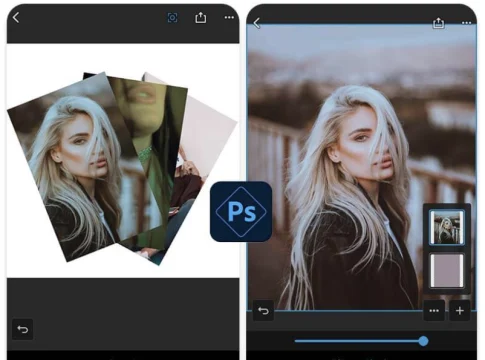
Originating from the renowned Adobe family, Adobe Spark is a robust app for creating photo collages. It offers a full suite of image editing tools, with nearly endless customization options. Additionally, Adobe Spark is known for its professional features and high output quality.
Therefore, this application is perfect for those who want to take their collages to a higher level, with the possibility of adjusting details such as contrast, saturation and layout in a precise and effective way. It is available in desktop and mobile versions.
PicsArt
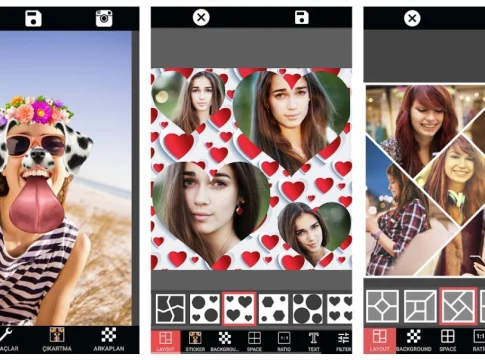
PicsArt is one of the most popular photo editing apps, and it's not hard to see why. It offers a wide range of functionality, including creating photo collages simply and quickly. Additionally, PicsArt offers several filters, effects and stickers that can be added to your collages.
This app's interface is intuitive, which makes it accessible to both newbies and more experienced photo editors. With PicsArt, you have the freedom to explore your creativity to the fullest.
Fotor
Fotor is a photo editing app that combines simplicity with powerful features. It offers a wide variety of collage templates, from the simplest to the most sophisticated. Furthermore, Fotor has a series of editing tools to enhance your images.
Fotor's difference lies in its ability to edit photos in high resolution without compromising quality, which makes it an excellent option for those looking for a professional result in their collages.
Collage Maker
Specifically designed for making collages, Collage Maker is an application that stands out for its simplicity and efficiency. It offers a wide variety of layouts and styles, allowing users to create custom collages quickly and hassle-free.
Furthermore, Collage Maker includes a variety of filters and effects that can be applied to photos, giving a finishing touch that transforms collages into true works of art.
Why does the collage come out with lower quality than the original photos?
This is the most common complaint from those who create collages on their cell phones: on the app screen it looked perfect, but after publishing the image it became blurry, with jagged edges and strange colors. It's not a defect in the app. It's the sum of three problems that happen in sequence, and all have a simple explanation.
The first loss is one of resolution. A cell phone photo is several thousand pixels wide. When it's placed in a frame that occupies a quarter of the collage, the app discards most of those pixels—the photo has been reduced to fit. If you then enlarge the result, there's no way to recover what was discarded: enlarging is inventing pixels from their neighbors, and that's what produces the softened appearance.
The second type of loss is due to compression. The JPEG format saves space by discarding information that the eye barely notices. Every time a JPEG file is opened, modified, and saved again, it goes through this process again, and the damage accumulates. A photo that has already been compressed by the camera, compressed again by the messaging app, and compressed a third time when exporting the collage, ends up with that blocky appearance around text and outlines.
The third loss is that of the social network. Every platform recompresses what you send to save bandwidth. You don't control that—but you do control what you deliver to it. The better the file is when it goes in, the better it comes out after the compression.
The most frequent case of all deserves its own mention: using photos that arrived via messaging app. They have already been reduced and recompressed during sending, often to a fraction of their original size. Collages made with this material start off losing value, and no subsequent adjustments can restore what was lost.
Step-by-step instructions for assembling without losing sharpness.
- Decide beforehand where the collage will be published. Square posts, vertical stories, group covers, and print ads all require different aspect ratios. Choosing the format at the beginning avoids having to crop everything again at the end.
- Use the original files from the gallery. Go to the photo on your camera, not the copy that came in the message, and not a screenshot. A screenshot is a photo of a photo: it already has the screen resolution, which is much lower than that of the camera.
- Opt for fewer photos per collage. With four images, each one occupies a quarter of the area and retains detail. With twelve, each face becomes a blur the size of a fingernail.
- Adjust the framing within each frame. Instead of zooming in digitally to the maximum, zooming in within the frame is the quickest way to ruin sharpness.
- Export at the highest quality available. If the app offers a size selection, choose the largest one. If it offers a format, PNG preserves more in collages with text and solid color areas; high-quality JPEG works well in collages of just photos.
- Do not re-edit the exported file. If you need to change anything, go back to the project and export it again. Each new export from the previous result adds another round of compression.
- Please zoom in before publishing. Open the result in the gallery and zoom in with two fingers. Whatever is bad there will look worse on social media.
The collage technique your phone already uses to create collages without installing anything.
Before searching for an app, it's worth knowing that both Android and iPhone have had this function built into their gallery for several years. On Android, the system's Photos app usually allows you to select multiple images and create a montage or collage from the creation menu; the name of the feature varies depending on the device manufacturer. On iPhone, the Photos app creates automatic slideshows and memories, and the share shortcut allows you to generate compositions without any downloads.
The advantages of sticking with what comes pre-installed are clear: no new permission, No account to create, no ads, no watermarks, and no files leaving the device. For most collages—the birthday photo, the before and after, the end-of-year mural—this solves the problem.
The limitation is also clear: there are few templates, almost no control over spacing, font, and background color, and there's no sticker library. That's where the dedicated app becomes worthwhile. The math is simple: if you make collages once a month, the native feature is enough; if you do it every week and want your own visual identity, install it.
Ready-made model: what it solves and what it limits.
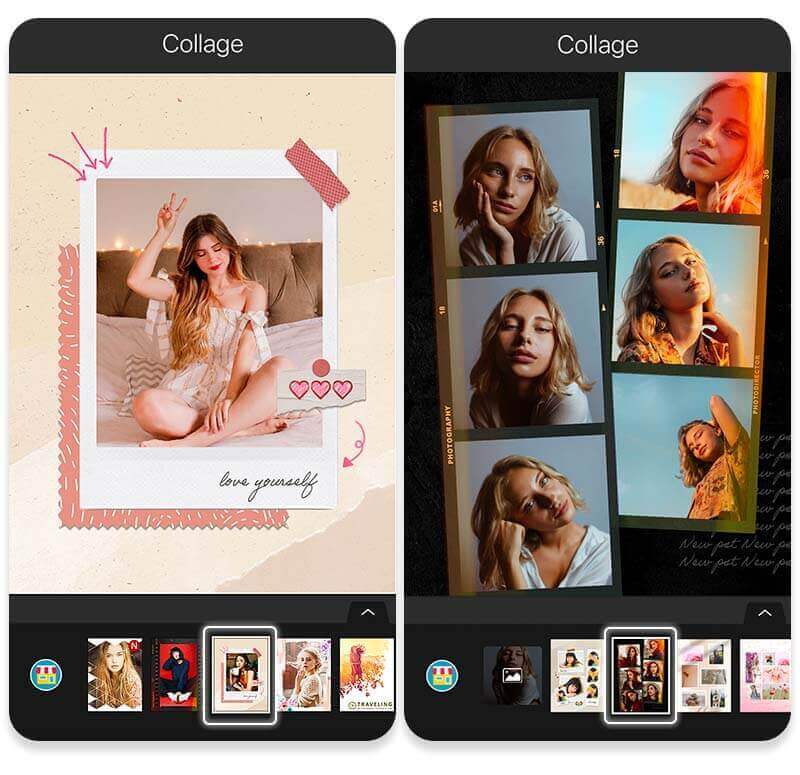
A ready-made template is the reason these apps exist, and the benefit is real: it already provides the correct proportions, balanced margins, and a hierarchy between photos. Those who have never studied composition will achieve more using a template than by creating one from scratch.
But the model has three limitations that often become apparent during the process:
- It was designed for a precise number of photos. Is there an image left over and nowhere to fit it in? Switching models mid-way usually means reframing everything.
- He dictates the format of the frames. A vertical photo printed horizontally will be cropped, and not always in the place you'd like. It's best to choose the template after looking at the photos, not before.
- It is used by many people. The prettiest designs are also the most popular, and the collage ends up looking generic. Changing the background color and spacing is enough to make it stand out from the rest.
One detail that almost no one notices: models with many thin dividers and rounded corners require more precise framing, because any misalignment becomes visible in the line. Models with generous spacing are more forgiving.
Read also
- Apps to Age Photos: 5 Options and a Privacy Alert
- Free Online Photo Editor: 5 Tools Without Installing Anything
- How to record PC screen? Discover the best options
- Video with Photos and Music: 5 Editing Apps for Your Phone
Frequently asked questions about pasting on mobile phones
Why did the collage appear clear on the phone but blurry after it was published?
Because the social network recompresses the uploaded file. The cell phone screen is also small and masks the defect. Submitting a larger and better-exported file reduces the damage caused by this recompression.
Does a collage made with a photo received via a messaging app look worse?
Stay. These copies arrive already reduced and compressed, often much smaller than the original. Whenever possible, request the original file or use the photo directly from your gallery.
How many photos can fit into a collage without looking bad?
There's no magic number, but there is a logic: the more photos you take, the smaller the area of each one, and the less detail remains. For social media posts, three to six photos usually keep faces recognizable.
Can you make collages that can be printed?
Yes, but with two precautions. Choose a paper-compatible format from the start and export at the largest size the application allows, because printing requires far more pixels than screen printing. Collages designed for vertical storyboards almost never print well.
Is it better to export as JPEG or PNG?
PNG stores more information and doesn't recompress, which is helpful when there's text, stickers, or a solid color background—in return, the file size becomes larger. High-quality JPEG is sufficient for collages composed only of photos and is accepted everywhere.
Do I really need to give access to all my photos?
No. Android and iPhone only allow you to authorize selected images for each use. If the app insists on full access or stops working without it, it's a sign to consider another option.
Conclusion
In short, photo collage apps are powerful tools that allow us to express our creativity through images. Whether for personal or professional use, they offer a wide range of features to transform simple photos into engaging and memorable visual narratives. So regardless of your photo editing skill level, there is sure to be a collage app that will meet your needs and help bring your artistic visions to life.