Video with Photos and Music: 5 Editing Apps for Your Phone
In the digital age we live in, creating visual content has become a popular form of personal expression and communication. With increasingly powerful smartphones and a variety of accessible apps, turning still photos into attractive videos with background music is a task that anyone can do.
Additionally, these videos can serve a variety of purposes, from sharing special moments on social media to creating professional portfolios.
However, with so many app options available, choosing the right tool for your needs can be a challenge. In addition to being easy to use, the best apps for making videos with photos and music should offer a variety of features, such as a wide selection of music tracks, smooth transitions between photos, and text customization options.
An Overview of the Best Options
In this competitive application landscape, some stand out more than others due to their usability, functionalities and efficiency. So let's explore five highly recommended apps for turning your photos into enchanting videos with music.
1. InShot
InShot is a video editing app that allows users to create stunning videos using photos and music. It offers a wide range of transitions as well as a rich and up-to-date music library. With InShot, users can easily synchronize their photo transitions with the rhythm of the music, giving a professional touch to the video.
Furthermore, this application provides an intuitive and easy-to-use interface, even for beginners. Its editing features, such as trimming, speeding up, adding text and stickers, make the experience of creating a video a pleasant and creative task.
2. Quick
Quik, developed by GoPro, is a free app that automates video creation using your favorite photos and music. With just a few taps, it selects interesting moments from your photos, adds transitions, and syncs everything to the beat of the music.
Furthermore, Quik allows users to customize their videos with text, filters and titles. The application also suggests music tracks that perfectly match the style of the video, making the process of choosing the soundtrack easier.
3. FilmoraGo
FilmoraGo is a robust and feature-packed video editing app. It allows users to import photos and music, apply elegant transitions, and add text and titles to tell a complete story.
Additionally, FilmoraGo offers a library of licensed music, so users don't have to worry about copyright issues when sharing their videos. It is a complete tool for those looking for more control and options when creating videos with photos and music.
4. Adobe Spark
Adobe Spark is an all-in-one solution for creating videos from photos and music. Being part of the Adobe family, it integrates perfectly with the company's other products, such as Photoshop and Lightroom. The application offers pre-defined templates, but also allows complete creative freedom.
On the other hand, its music library is vast and the interface is designed to be simple yet powerful, allowing even users with no experience in video editing to create high-quality final products.
5. VivaVideo
VivaVideo is a popular app that stands out for its ease of use and powerful features. It allows users to create photo videos with music quickly and easily thanks to its user-friendly and intuitive interface.
It comes with a variety of creative transitions and an extensive music library to choose from. VivaVideo also allows the addition of text, stickers and filters, allowing users to express their creativity to the fullest.
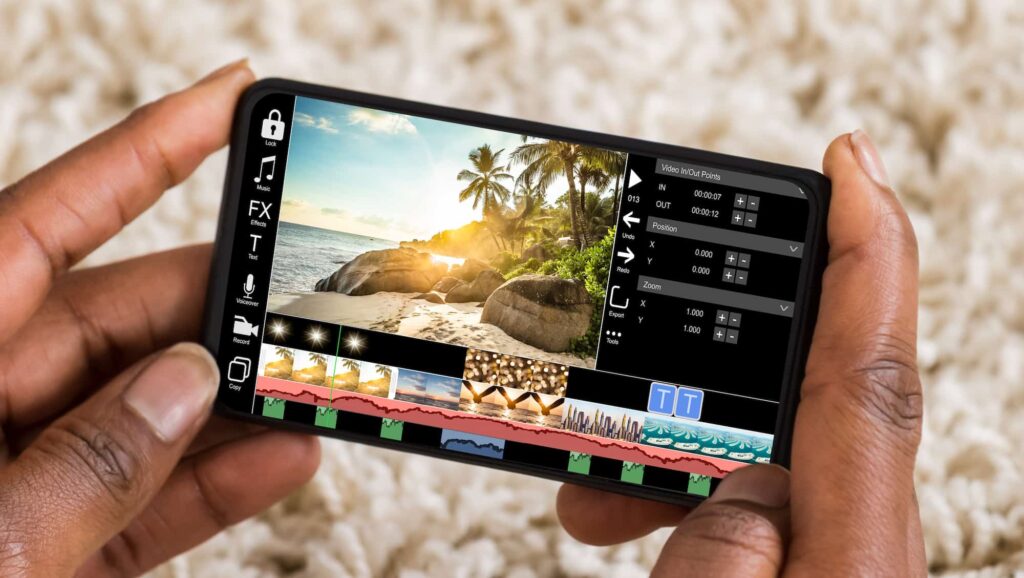
What your phone can already do without installing anything.
Before choosing an editor, it's worth opening the photo app that came with your device. It solves the most common problem — combining photos from a birthday, a trip, or a graduation and adding music over them — without any downloads.
On both Android and iPhone, the gallery automatically creates compilations based on an event, date, or a person recognized in the photos, with pre-adjusted music, transitions, and duration. You open the suggestion, change the music, remove the photos you don't like, change the title, and save. You can also start from scratch: manually select the images and ask it to create a movie or slideshow.
The limitations are clear — little control over the duration of each shot, fixed transitions, and a soundtrack from a short library. But for a video that goes to the family group chat, that's enough. Install an editor when you need something the native one doesn't do: synchronize cuts with the beat, add captions with your own style, mix video and photos on the same timeline, or export in different formats for different networks.
From photo roll to finished video: the step-by-step guide
- Choose your photos before opening the editor. Between 20 and 40 images make a one- to two-minute video. Selecting them within the editor is slower and leads to over-selecting.
- Define the format based on the destination network. Vertical for stories and short videos, square for the feed, horizontal for television and long-form video platforms. Changing the format later usually cuts off the head and foot of photos.
- Arrange them in the order that tells a story. I start with the context, then what happened, and end with the most striking photo. Pure chronological order almost always ends up being lukewarm.
- Adjust the duration of each photo. Two to four seconds works well. Less than that and there's no time to look; more than that is tiring.
- Use only one transition, two at most. The video, with its different effects at each cut, looks like a school presentation. A hard cut and a slight, slow zoom solve almost everything.
- Choose the music from the editor's own library. And align the cuts with the beat. It's the trick that makes an amateur video look the most professional.
- Write concise and substantial text. Legible font, high contrast, away from the edges — and no text in the bottom area, which the app interface usually covers.
- Export at the highest available resolution. Watch the entire thing on your phone before posting. Order errors and duplicate photos only appear in this conference.
The problem is the music, not the video.
Here's the part that trips up more people than any technical difficulty. The photos are yours; the music almost never is.
Video platforms and social media networks have automated systems that identify copyrighted audio recordings in your posts. When they find them, the outcome varies: the video may be muted in that section, it may be blocked in some countries, or it may simply remain online with the revenue going to the copyright holder. None of this is punishment for bad faith—it's the normal functioning of the system.
What changes the game:
- Use the library provided by the publisher or the network. These tracks are licensed for use within that service, which is why they are there.
- Understand that the license doesn't travel. A song chosen within a social network is valid on that network. If you download the finished video and publish it elsewhere, the recognition may still be triggered.
- Commercial use is a different story. Videos for stores, real estate agencies, or weddings sold as a service — in these cases, the right thing to do is to use a soundtrack with a commercial license, which can be found in music libraries specifically designed for this purpose.
- Downloading a track from a streaming service and then pasting it into a video doesn't solve anything. In addition to violating the terms of use and copyright, the attribution identifies the recording in the same way.
For family videos in WhatsApp groups, none of this usually causes problems. For anything that will be public, a licensed library is the safest option.
How much does it really cost: watermark, signature, and export?
Almost all mobile video editors are free to install, and the account is created afterward. These are the models:
- Watermark at the exit. You can set everything up for free, and the exported video will have the app's logo. Removing it is the first option in the paid plan.
- Resources locked. The model, effect, font, and music track appear in the list with a padlock, and the padlock is only revealed when exporting—after you've done your work.
- Limited resolution. The free version exports at a lower resolution; the higher resolution is available with a subscription.
- Monthly or annual subscription, This service is charged by the app store, almost always with a trial period that automatically becomes a charge if not canceled before the deadline.
- Announcement between stages, the model for the simplest editors.
Two rules that apply to everyone: the real price is the one listed on the store's product page, not the price advertised within the app; and Uninstalling does not cancel subscription. — Cancellation is done through your store account. Before subscribing, try this money-saving test: create a short video and export it. If the free result is satisfactory, you've just discovered that you don't need to pay.
Mistakes that ruin a beautiful video
- Mix landscape photo with vertical video. The editor fills in the excess with bars or a blur. Choose a format and crop the photos to it.
- Text on the bottom border. This is exactly where the social network places the caption, profile name, and buttons. Move everything up a few fingers.
- Music too loud over the voice. If there is narration or original audio, the soundtrack needs to be kept well below the original volume — the ear forgives low volume, but not muffled vocals.
- Exporting low-quality goods to "save money". The destination app compresses again when uploading, and the result has that pixelated appearance.
- Publish without text caption. Many people watch with the sound off; without subtitles, the message is lost.
- Do not save the project. If you uninstall the app or clear the data, the project will be deleted. Export the final video and save it outside the editor.
Questions about creating a video with photos and music?
How many photos fit into one minute of video?
With three seconds per photo, that's about twenty. If you have a hundred images, the way to go is not to speed each one up — it's to choose better ones or split them into more than one video.
Can I use old, low-resolution photos?
Yes, it's possible, but avoid enlarging it too much. A small photo stretched to full screen becomes blurry; in these cases, it works better to display it smaller, against a background, than to force it to fill the screen.
Why did the video become so huge in megabytes?
High resolution, many frames per second, and long duration, all combined. Exporting in 1080p at thirty frames per second is ideal for social media and significantly reduces file size.
Do I need a powerful phone to edit videos?
For displaying photos with music, no. The issue becomes apparent in long videos, in 4K, and with many effects—then a weak device will overheat, stutter, and take a long time to export.
Can the editor access all my photos?
Both Android and iPhone allow you to grant permission to only selected images, instead of the entire gallery. It's a permission setting worth using with the editor you just installed.
The phone's gallery automatically assembles the video.
Before choosing an editor, it's worth opening the photo app that came with your device. It solves the most common problem — combining photos from a birthday, a trip, or a graduation and adding music over them — without any downloads.
On both Android and iPhone, the gallery automatically creates compilations based on an event, date, or a person recognized in the photos, with pre-adjusted music, transitions, and duration. You open the suggestion, change the music, remove the photos you don't like, change the title, and save. You can also start from scratch: manually select the images and ask it to create a movie or slideshow.
The limitations are clear — little control over the duration of each shot, fixed transitions, and a soundtrack from a short library. But for a video that goes to the family group chat, that's enough. Install an editor when you need something the native one doesn't do: synchronize cuts with the beat, add captions with your own style, mix video and photos on the same timeline, or export in different formats for different networks.
Read also
- Applications to Listen to Free Gospel Music Without Internet
- Listen to Music Offline: 10 Apps and Which Ones Don't Require Premium
- Listening to Music Without Using Data: How Offline Mode Works in Apps
- Photo Collage on Your Phone: 5 Free Apps with Ready-Made Templates
- How to Recover Deleted Photos from Your Cell Phone: Step-by-Step Guide with 5 Apps
Conclusion
In short, creating videos using photos and music has never been more accessible and fun. Whether you're a professional looking for a robust tool like Adobe Spark, or someone who wants to share moments with friends and family quickly and easily, like with InShot or VivaVideo, there's an option for everyone.
With these apps, the possibilities are practically endless, allowing anyone to transform static memories into vivid, exciting videos with smooth transitions and immersive music. Choose the app that best suits your style and needs and start creating today!