
Full Memory on Your Cell Phone: A Step-by-Step Guide to Freeing Up Space on Android and iPhone
We've all been there: the notification that your phone's memory is almost full pops up just when you're about to take a picture, update an app, or receive a video. And then comes the unpleasant choice between deleting this or that, almost always by guesswork, almost always deleting what wasn't the problem.
The good news is that you don't need to install anything to solve this. Both Android and iPhone have a built-in panel that shows... exactly This guide shows how much space each type of content is taking up and provides buttons to safely free up space. It's a step-by-step walkthrough of this native path, in the order that provides the most space with the least risk. Finally, I explain in which cases a cleaning app is still helpful—and why most of them promise something the system already does automatically.
First of all: full memory means storage, not RAM.
There are two memory systems on a cell phone, and confusing them is half the source of the problem. RAM This is working memory, where open applications are stored; it empties automatically when you shut down and is managed by the system itself. storage It's where photos, videos, apps, and messages reside; it's what fills up and generates the "memory full" warning.
Anyone advertising "free up RAM with one touch" is solving the wrong problem. What you want is... free storage, ...and that's what the steps below deliver. As a rule of thumb, try to keep at least 10% of storage free: below that, the system has difficulty saving temporary files and the device becomes genuinely slow, not just slow in terms of printing.
Step-by-step on Android: discovering where the space went
1. Open the storage panel.
Go to Settings > Storage. Depending on the manufacturer, the path may be... Settings > Device care > Storage. You'll see a bar divided into categories: applications, images, videos, audio, documents, and system files. Before deleting anything, read this section — In nine out of ten cell phones, a single item accounts for the majority of the problem, and it's almost never what the person imagined.
2. Use the “Free up space” button.”
In the same panel, there's a "free up space" button that opens the system's file manager. It groups together what's safe to delete: temporary files, old downloads, memes and duplicate images received in conversations, applications you haven't opened in months, and media already backed up to the cloud. It's the safest scan possible because whoever wrote those rules also wrote the system.
3. Clear the cache of the most resource-intensive applications.
In Settings > Apps, Sort them by size. Open the three or four largest ones and enter them. Storage. There are two different buttons there, and the difference is significant: Clear cache It only deletes temporary files and is harmless; Clear data It resets the app, logs you out, and allows you to delete content that only existed there. Use the first option freely; the second, only with awareness of what you will lose.
4. Attack the messenger, who is almost always the champion.
Messaging apps automatically save all received photos and videos, including group messages. Most major apps have a dedicated screen for this. Settings > Storage and data > Manage storage, This section lists the largest files and those forwarded many times, with preview and multiple selection options. It's where you can recover the most gigabytes in the shortest amount of time. While you're at it, turn off automatic media downloads in the same menu.
5. Release the photos that are already in the cloud.
If photo backup is enabled and complete, the gallery app offers the option to remove local copies of previously uploaded images from your device. First, check if your backup is up-to-date—the app's settings screen clearly indicates this. Then, use the free-up space function. The photos remain accessible; they simply stop occupying local storage.
6. Empty the trash cans.
Gallery, file manager, and cloud application have their own recycle bins that continue to occupy space for weeks. If you've already deleted something and are sure, emptying all three usually frees up a good chunk of space. If you're not sure, leave it as is—the recycle bin is your safety net.
Step-by-step instructions on iPhone
On the iPhone, the path is Settings > General > iPhone Storage. The screen opens with a graph by category and, just below, a list of personalized recommendations. The most useful ones are:
- Download unused apps: Remove the app and keep your documents and data. The icon remains on the screen; tapping it reinstalls it, and you pick up where you left off. It's the best way to trade space for system convenience.
- Review large videos: It lists the videos by size, from largest to smallest. Video is always the largest file size.
- Review large attachments: It shows what arrived via message and was saved.
- Recently deleted: In the Photos app, deleted items remain in storage for 30 days. While they're there, they don't free up any space.
- Safari: In Settings > Apps > Safari, “Clear history and website data” resolves the browser cache.
One important difference compared to Android: the iPhone It does not offer a button to clear the cache for each application.. The system manages this automatically and frees up temporary files when space is limited. When a specific app is bloated, the solution is to delete it and reinstall it. Therefore, on the iPhone, cleaning apps have even less to do than on Android.
Something that takes up space and nobody will look for.
- Video recorded in high resolution. One minute in 4K takes up several minutes of regular recording. If you don't edit video, lowering the camera's default resolution changes the game from here on out.
- Audio recordings of conversations. Individually small, they add up to quite a lot in the thousands.
- Maps and content downloaded for offline use. Maps, podcast episodes, downloaded series, and offline music get forgotten.
- Game bundles. A large game downloads additional content after installation and ends up occupying several times its original size.
- Downloads folder. Bills, receipts, PDFs, and installer files accumulated over the years.
- Second copies. The same photo that you received, saved, edited, and resent could exist in four different folders.
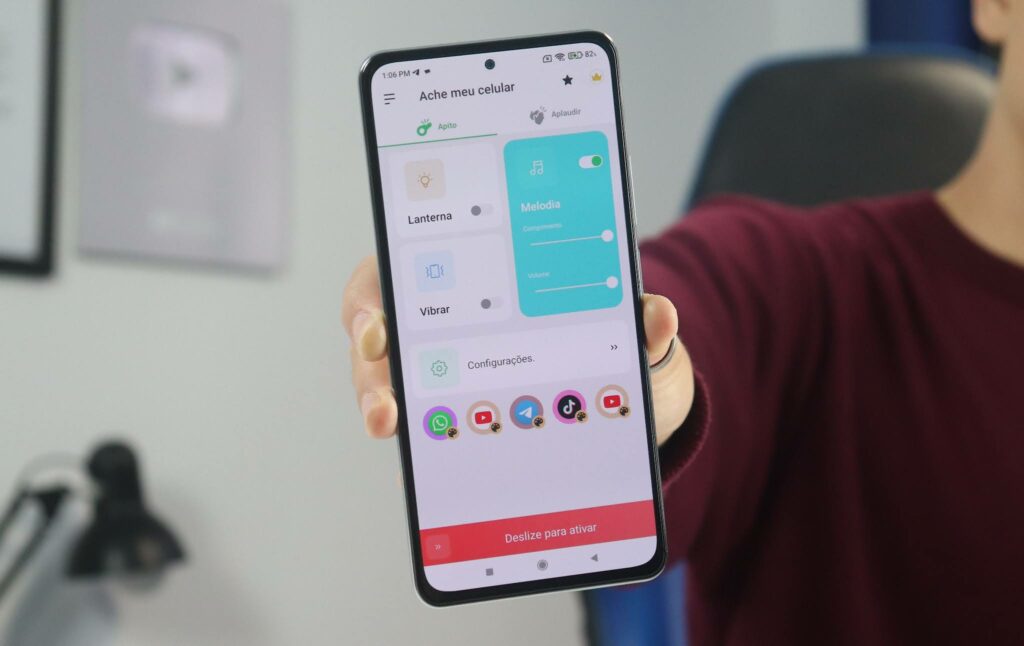
When a cleaning app still helps
After completing the above steps, there's little left for a third-party application to do. It remains useful in two specific cases: Find duplicate files. scattered across different folders, and List residual files from already uninstalled applications., ...which the system doesn't always remove. These are tedious tasks to do manually, and that's where the tool pays for itself.
If you're going to install one, look at three things: who published it (look for a company with a name and history), what permissions it asks for (cleaning requires access to files, not contacts, SMS, or location), and how the app makes money. A free tool, without ads or subscriptions, with tens of millions of installations, makes a living from something—and it's worth knowing what it's from before granting access to all your files.
It's also worth noting that some names survive on old lists: the CleanMaster and the entire portfolio of DU They have been removed from the Play Store. If you find one of these names on a download site, the file is not the original—this is precisely the type of installation you should avoid.
What cleaning can't fix
- It doesn't magically make your phone faster. Freeing up space helps when storage is at its limit. If there's space left and the device remains slow, the cause is something else.
- It does not recover a degraded battery. A battery is a wear and tear component; no software can reverse charging cycles.
- It does not increase the device's memory. An app that promises to "add RAM" is selling smoke and mirrors.
- It doesn't protect against erasing what matters. Always review the list before confirming any mass deletion.
When the panel shows "System" and "Other" and the account doesn't balance.
A genuine question that always comes up when someone opens the storage panel for the first time: the numbers don't add up. The device was sold as 128 GB, the panel says the total capacity is less than that, and on top of that, a large chunk is marked as "System" or "Other," without any button to change it. It's not a defect or false advertising—it's both things adding up.
The first difference is in the unit of measurement. Manufacturers measure capacity in decimal gigabytes, with one billion bytes each; the operating system measures in binary blocks, which are slightly larger. The same physical memory, measured in both ways, gives different numbers, and the system's number is always the smaller. The second difference is that the operating system resides there: the partition with Android or iOS, the pre-installed applications, and the recovery files occupy several gigabytes from day one. On devices that install updates in the background, there is even more space reserved for that.
Regarding the "Other" category, which is usually the most annoying: it's not hidden junk. It includes files that don't fit into the visible categories—loose documents, data from undeclared applications, temporary system files. There's no button because there's no single criterion for deleting it. The way to reduce it is indirect: uninstall applications you don't use and clear the cache of the larger ones.
Storage at its limit: how to unlock a phone with zero free bytes
When storage space truly runs out, the device enters a stalemate: the camera won't record, apps close on their own, messaging apps won't accept media, and even deleting things becomes difficult because some operations require space to function. The solution is to start with what doesn't require any space at all:
- Uninstall the heaviest app that you don't use. Uninstalling frees up space immediately and doesn't consume any storage. Sort the list of apps by size, starting from the top.
- Delete a handful of long videos. directly to the gallery and then, Empty the gallery trash can. Without this second step, space cannot be recovered.
- Clear the cache of the three largest applications. through each user's storage screen. It's fast and doesn't delete any content.
- Connect your cell phone to your computer using a cable. Copy photos and videos there. Transferring works even when the device is full, and it's the safest way to empty it without making a mistake.
- Restart at the end. After freeing up space, the restart clears temporary files that got stuck in stalled processes.
After the device has recovered, it's worth addressing the root cause before the cycle repeats: turning off automatic media downloads and ensuring photo backups are complete are the two changes that most effectively delay the next warning.
The system update fails to install due to lack of space.
This is the most common symptom of full memory after the warning itself: the update downloads but doesn't install, or doesn't even start. The reason is that the process needs significantly more space than the advertised package size—it downloads the file, unpacks it, and writes the new version, and none of these steps can happen at the limit. As a rule of thumb, leave a margin of several times the package size before attempting to update.
Not updating isn't just a cosmetic detail. Updates bring system security fixes, and a device stuck on an old version is exposed to known and already patched vulnerabilities. If you've been putting off updating for months because there's never enough space, that's the best argument to finally clean up your system: it's not about speed, it's about keeping your device protected.
Questions from people who have 32GB or 64GB cell phones.
Is it possible to use a phone with limited storage without living on the edge?
It's possible, but with two decisions made beforehand: photo backup enabled with automatic release of local copies, and automatic media download disabled in the messenger. Without these, any cleanup will only last a few weeks.
Is it worth deleting large apps that I rarely use?
This is especially true for games, which continue downloading content after installation and grow over time. If the system offers to archive instead of uninstall, choose that option: the icon remains, your data is saved, and part of the application is removed from the device.
Is it possible to increase memory using an app?
No. No software adds physical storage. What exists is moving content out of storage—cloud, card, computer—and freeing up duplicated space. Any app that promises to expand the device's memory is selling the impossible.
Will changing your phone solve the problem permanently?
Solve the problem while you have the spare capacity. An appliance with twice the space fills up in roughly twice the time if your habits remain the same. Input settings are more important than nominal capacity.
Read also
- Slow Cell Phone Even After Cleaning: The Real Causes and What to Do in Each Case
- Optimize your phone's battery: 5 apps and what each one monitors.
- Cleaning Your Phone's Memory: What Changes Between Android and iPhone
- Slow phone? Meet Nox Cleaner, a free cleaning app.
- Optimize Smartphone Performance: 7 Apps to Combat Freezing
Common questions
Will clearing the cache delete my photos and conversations?
No. “Clear cache” only deletes temporary files that the application recreates automatically. The button next to it, “Clear data” or “Clear storage,” is what deletes content—this one resets the application.
Do I need to clean my phone every day?
No. The cache exists to speed up usage; clearing it daily causes the device to download everything again, wasting data and battery. A review every two or three months, or when the warning appears, is sufficient.
Would a memory card solve the problem?
This solves the problem of storing photos, videos, and music on devices that still accept SD cards. Use a card from a well-known brand and with the appropriate speed class: a slow card will become the bottleneck for the device. Keep in mind that most applications still need to be stored in the internal memory.
The "memory full" warning disappeared, but the phone is still slow. What now?
So storage wasn't the cause. Look for pending system updates, overheating (the device reduces performance to protect itself), a very worn-out battery, and a poor internet connection—which is often mistaken for a slow phone.
Conclusion
Full memory is a storage problem and has a straightforward solution: open the system's own control panel, see what's taking up space, and act on the culprit, which is almost always video or chat media. By following this article's steps from top to bottom, the device can breathe without you having to blindly choose what to delete—and without installing anything.
After that, two small changes prevent recurrence: turning off automatic media downloads in the messenger and keeping your photo backups up to date. It's less work than it seems and worth it compared to any cleaning app.