Free Online Photo Editor: 5 Tools Without Installing Anything
Editing photos has never been so easy and accessible. Nowadays, there are a variety of free online photo editors that allow you to transform your images with just a few clicks. Whether it’s adjusting colors, cropping, adding filters or even creating montages, these tools are essential for anyone who wants to enhance their photos without complications and, best of all, for free.
Furthermore, with the popularization of smartphones, several free photo editing apps, making editing even more practical. Whether for personal, professional or social media use, the demand for fast and efficient tools is growing more and more. What was once exclusive to paid and complicated software can now be done on any device with free photo editing tools.
Currently, the options for free online image editors are vast. They offer everything from the simplest features to advanced tools that allow for a very detailed level of customization. So if you're looking for a way to edit photos for free, this article is for you. Below, we’ll explore some of the best options available and how you can use them.
Use a free photo editing app or an online platform is the best solution for those looking for quality and practicality. Many of these tools also offer options such as saving in different formats, applying predefined filters and even creating visual content for social networks. With so many options on the market, finding the best editor for your needs has become even easier.
Best tools to edit photos easily and for free
With the advancement of technology, several platforms have emerged offering quick and easy photo editing. These tools are ideal for those who want to improve their images without having to master complicated design or editing techniques. Check out some of the main options available and how they can make your work easier.
Canva
O Canva is one of the most popular platforms for those who want to edit photos online for free. With an extremely user-friendly interface, Canva allows you to drag and drop visual elements onto your images, making it easy to create social media posts, banners, cards, and more. One of Canva's main advantages is its vast library of ready-made templates, which makes the editing process even easier.
Additionally, Canva offers a variety of free photo editing tools, such as adjusting brightness, contrast, saturation, and cropping. Although it has a paid version, the free version already offers a wide range of features that meet basic image editing needs very well.
Fotor
O Fotor is another excellent option free online image editor. It offers a variety of filters and effects that can be applied to your photos with just one click. Fotor also has image correction tools that allow you to adjust lighting problems, red eyes, skin blemishes, among others.
The interface of the Fotor is simple and straightforward, ideal for those who want quick results. In addition to being an online platform, Fotor also has a free photo editing app available for download, which makes it easy to edit photos directly from your cell phone, anywhere.
Pixlr
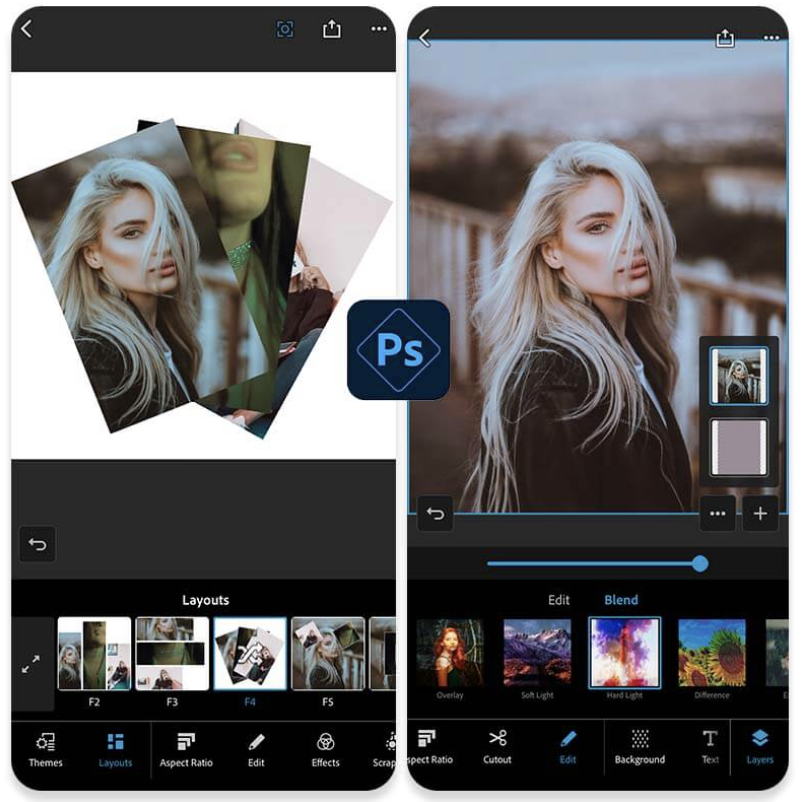
O Pixlr is one of the most complete tools for quick and easy photo editing. It offers everything from basic tools like cropping and color adjustments to more advanced features like layers and masks, which are usually only found in paid programs. With Pixlr, you can edit your photos directly in your browser, without having to install anything.
If you are looking for a free online photo editor With advanced features, Pixlr is a great choice. Plus, it offers a mobile version, allowing you to edit photos on your smartphone without losing quality or efficiency.
Snapseed
Developed by Google, the Snapseed is a free photo editing app that offers a wide range of features. Unlike many apps, Snapseed is focused on those who want more control over the adjustments to their photos. It allows you to apply fine adjustments to brightness, contrast, and sharpness, as well as offering creative filters and retouching tools.
With Snapseed, you can make complex edits without sacrificing ease of use. It is ideal for those who want a free photo editing app that offers both basic and advanced features.
BeFunky
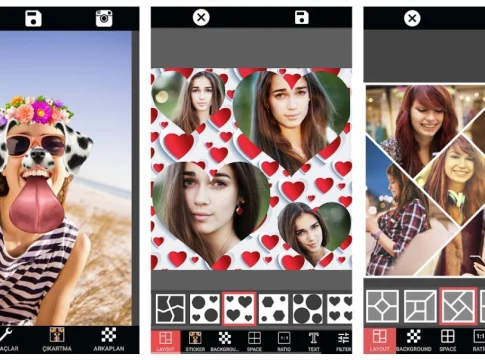
O BeFunky is an online platform that allows edit photos for free intuitively. Like Canva, it offers a series of templates and ready-made elements to customize your images, as well as basic editing tools, such as cropping, resizing and color adjustments. What sets BeFunky apart is its simplicity, which allows you to create photo montages and collages quickly.
Additionally, BeFunky also has filter options and visual effects that can be applied to your photos with just one click. For those looking for a free online photo editor Focused on creating visual content, BeFunky is an excellent choice.
Features that make photo editing easier
These tools and applications offer more than just basic editing functionality. With the constant evolution of free photo editing apps, you can access features like advanced filters, retouching tools, customizable frames, and even artificial intelligence to enhance your images. Many of them, like Canva and the Snapseed, also allow for high-resolution editing, ensuring that you don't lose quality when adjusting your photos.
Additionally, many of these platforms allow you to save your creations directly to cloud services, making it easier to access and share them on different devices. Fotor and the Pixlr, for example, also support multiple file formats such as JPEG, PNG, and even professional image formats like TIFF.
What happens to your photo when it's uploaded to an online editor?
Editing in a browser may seem the same as editing in an installed program, but at the core, they are two different stories — and it's worth understanding the difference before uploading photos of documents, children, or anything else you wouldn't normally publish.
There are editors that work. entirely within the browser. The file is read by the device itself, the processing happens there, and nothing is transmitted over the internet. These devices usually continue to function even with an unstable connection and are the safest option for sensitive material.
And there are publishers who They send the image to a server.. That's where the photo went when you dragged it to the window. The file is saved to temporary storage, processed, and returned. Every resource-intensive feature—automatic background removal, AI-powered enlargement, old photo restoration, sky replacement—works this way because it requires computing power that the browser doesn't have.
Once on the server, that copy enters a cycle that no one shows on screen: it's stored in temporary storage for a while, it may pass through a content distribution network, and the access address to the result is usually a hard-to-guess but public link—whoever has the link can open it. If you shared the result link with someone, consider that image accessible to whoever receives the address.
The practical test to find out which of the two you're using is the same as always: disconnect from the internet and try to apply the effect. If it works, the processing is local. If a connection error or a upload bar appears, the photo has been sent.
How to read a publisher's privacy policy in five minutes.
Nobody's going to read eighteen pages of terms and conditions just to crop a photo—and they don't need to. You can extract the essentials with a browser search and five keywords. Open the privacy policy and terms of use and search for:
- “"Retention" or "for how long". This section indicates when the uploaded copy is deleted. Reputable services advertise a short processing time for files without an account.
- “"License". Here's what the company can do with your image. A broad license—worldwide, free, transferable—doesn't mean the company owns the photo, but it significantly expands the permitted uses.
- “"Third parties" and "partners". It specifies whether the file or usage data can be shared, and with whom.
- “"Training" or "service improvement". This is how the use of user images to train models is often described.
- “"Account deletion". Check if deleting the account also deletes the uploaded content. It's not automatic on all services.
- “"Manager" or "contact". This is the channel through which you can request access to or deletion of your data, a right guaranteed to you by the General Data Protection Law.
Two additional checks, outside of the legal text: see if the address starts with "secure connection" before sending any files, and find out who the responsible company is — name, country, some form of contact. A publisher that doesn't say who owns it and even asks for registration to export deserves basic suspicion.
The detail no one talks about: what EXIF data reveals about you.
Every photo taken with a cell phone carries a set of invisible information called EXIF: exact date and time, device model, camera settings, and, when location is enabled on the camera, the coordinates of the place where the photo was taken. This travels along with the file when you send it anywhere.
Here's the good news and the bad news. The good news: most online editors discard this data when generating the final file, so the exported image usually comes out without coordinates—which is great for publishing without revealing your home address. The bad news: the discarding happens in the file itself. exit; The file you sent arrived complete on the server.
It's also worth knowing that this discarding has a practical cost: along with the location, the original date of the photo is lost. Those who organize their collection by date end up with a lot of images dated the day they were edited, not the day the photo was taken. If the collection is important, always keep the original and treat the edited file as a copy.
The technical limitations that appear in the middle of the work.
Online editors are convenient because they don't require installation, but convenience comes at a cost in specific situations. The most common barriers are:
- Maximum file size. Almost every service imposes a megabyte limit per image. Photos from professional cameras sometimes don't even upload.
- Camera formats not supported. The raw files that cameras generate, with much more color information, are generally not accepted or are converted with loss before editing.
- Session expiring. Closed the tab, the battery died, the internet went down mid-way: without an account, the work won't resume. Save intermediate steps in long projects.
- Connection dependency. Editing on an unstable connection, with a large image, turns a two-minute task into twenty.
- Advanced feature in the paid plan. Layers, masking, high-resolution export, and background removal are usually the signature hook.
- Predictable color only in sRGB. Wider color profiles are often converted, which changes shades in photos that rely on accurate color.
- Recompression with each export. Each round of saving as a JPEG discards a little more information. Editing, exporting, reopening the exported file, and editing again is the quickest way to end up with a blocky, pixelated image.
When the online editor isn't the right tool.
I'll be honest: for nine out of ten everyday tasks—cropping, brightening, resizing for social media, removing a small object from the background—the browser editor is the best choice because it's fast and doesn't take up space on your device. But there are cases where it's the wrong choice.
Document and personal data. Photos of ID cards, driver's licenses, proof of address, pay stubs, business cards: if you can use the editing feature already available in your phone's gallery or in an installed program, do so. This information doesn't need to be sent through a third-party server.
Large volume. Resizing two hundred photos one by one in a browser is tedious work. Installed programs handle batch processing, and operating systems have simple multi-resizing tools.
Work that needs to be redone later. If you're going to revisit the edit in a week, you need a saved project with separate layers, not a flattened image. Free online services rarely save projects for very long.
No stable internet connection. It seems obvious, but it's the number one cause of files being lost during editing.
Read also
- Photo Collage: 5 Apps for Beginners and Professionals
- Photo Collage on Your Phone: 5 Free Apps with Ready-Made Templates
- Apps to Age Photos: 5 Options and a Privacy Alert
- How to record PC screen? Discover the best options
- Watching Free TV on Your Cell Phone: The Legal and the Risky Options
Frequently asked questions about editing photos online.
Is a free online editor safe?
Well-known services, with identified companies and published privacy policies, are reasonably safe for regular photos. The criterion is not the brand, but the type of image: sensitive material should not be uploaded to any server, no matter how well-known it is.
Can the company use my photos?
Within the limits allowed by the license terms. That's why the word "license" is the most important in the document. If the text authorizes use for promotion or improvement of the service, that's what counts—you agreed to it by using it.
Why did the edited photo become lighter and less sharp?
Because it was recompressed during export, and many services apply compression to speed up downloads. If there's a quality option when exporting, choose the highest one; and never re-edit an already exported file.
Do I need to create an account to use it?
For basic functions, almost never. An account is usually required to save a project, export in higher resolution, or use advanced features. If you decide to create one, a secondary email address prevents turning editing a photo into years of mass mailings.
Does editing in a browser use up mobile data?
It consumes data when the service sends the image to the server — and the usage is proportional to the size of the photo, both ways. On a limited mobile network, tools that process images on the device itself make a real difference to the data allowance.
How do I delete a photo I've already sent?
If you have an account, look for the files or history area and delete them from there. If you don't have an account, you can wait for the retention period described in the policy or write to the contact indicated in the document requesting deletion, keeping a copy of the request.
Conclusion
Whether for professional or personal use, using a free online photo editor or a free photo editing app is a great way to enhance your images quickly and easily. With so many options available, such as Canva, Fotor, Pixlr It is Snapseed, you can easily find the tool that best suits your needs. quick and easy photo editing.
So, if you want to edit your photos with quality, without spending money and with practicality, explore these platforms and take advantage of all their features. In addition to saving money, you can create incredible photos with just a few clicks!