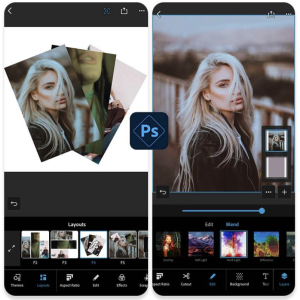
These days, capturing special moments has become an extremely easy task, thanks to the presence of high-quality cameras on our smartphones. However, going beyond simply capturing images and transforming them into a unique work of visual art is where the real magic happens. Making photo collages, for example, has become a popular way to express creativity, narrate stories, or just organize your memories in an aesthetically pleasing way.
Additionally, photo collages are not just for personal use. They are a powerful tool for marketers, bloggers, and designers who want to create compelling visual content for their audiences. But what's the best way to start? Fortunately, there are several apps designed to help you with this task, regardless of your skill level.
Transform Your Images with Collage Apps
In this universe of possibilities, choosing the right application can be a challenge. So we've put together a list of five reliable, easy-to-use apps that will let you turn your photos into stunning collages. Let’s explore their features, benefits and what makes them stand out in the market.
Canva
Canva is a graphic design app that allows users to create a variety of visual content. With it, you can choose from a wide range of pre-made collage templates or create your own from scratch. Canva is incredibly beginner-friendly, offering a drag-and-drop interface that simplifies the design process.
Furthermore, Canva provides access to an extensive library of graphic elements, including images, icons, and fonts. This allows you to customize your... photo collage to the fullest extent, ensuring that it represents your unique and creative vision.
Adobe Spark
Adobe Spark is a design tool that lets you create professional-looking photo collages quickly and easily. It has a variety of design templates, meaning you can get started without needing advanced graphic design skills.
Additionally, Adobe Spark offers a series of features for image editing. This means you can adjust colors, apply filters and add text to your collage, making each creation unique and personalized.
PicsArt
PicsArt is more than a simple photo editing app; is a community for artists and creators. It offers a wide range of photo editing tools, including the ability to create fantastic collages.
Notably, PicsArt allows users to explore layers and masks, giving a deeper level of control over their creations. This app also promotes social interaction by allowing you to share your collages with a global community.
Fotor
Fotor is a photo editing app that offers a complete experience, including collage functionality. With an intuitive and easy-to-use interface, Fotor makes creating photo collages a hassle-free task.
Additionally, Fotor comes with a series of collage templates that can be fully customized. So, you can choose a layout you like and then modify the colors, images and text according to your needs.
PhotoGrid
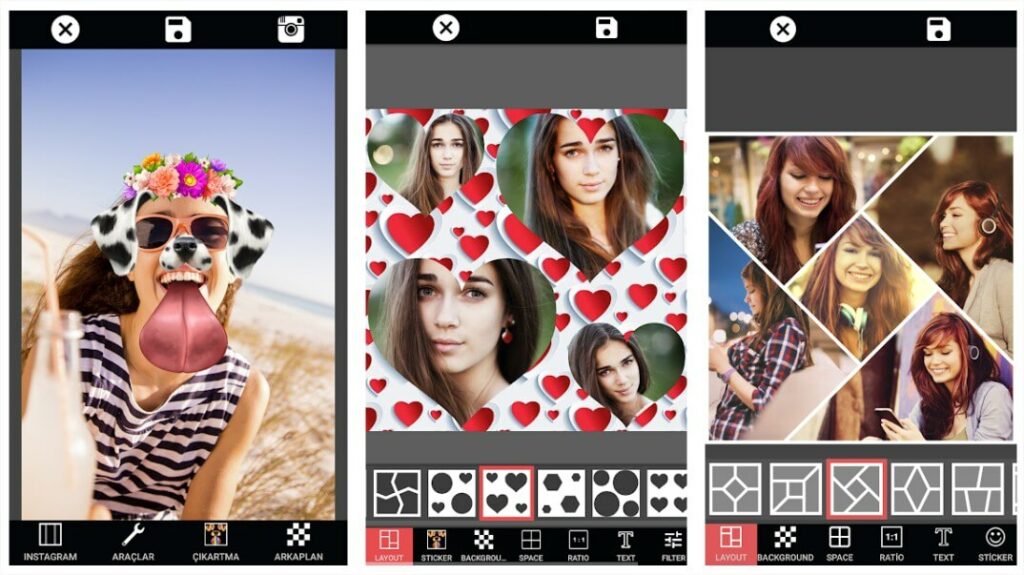
PhotoGrid is an application specialized in photo collages that offers a very friendly user experience. It has more than 300 collage templates, ensuring you'll find the perfect style for your photos.
Additionally, PhotoGrid allows you to edit each image individually within the collage. This means you can apply filters, adjust brightness and saturation, and add stickers and text to each photo before finishing the collage.
Where the free ends: watermark, export, and premium features
Let me be blunt: almost no collage app is free from start to finish. It's free up to the point where you've already invested time in assembling it—and that's exactly when you save it and the bill appears. Knowing where those walls are avoids the frustration of assembling an entire collage only to discover that the result is streaked.
The most common forms of billing, in order of frequency:
- Watermarking for export. The app's logo appears in a corner of the final image. In some cases, it can be removed by watching an advertisement; in others, only by subscribing.
- Limited resolution on the free plan. The image appears sharp on screen, but the exported file is smaller than the original. This is the most deceptive aspect, because you only notice it when you enlarge the image later.
- Template, font, or sticker with a padlock. The catalog shows everything, and a good portion of it is premium. The locked model is usually the one you chose.
- Automatic cropping and background removal feature. This type of function runs on a server and costs money for those who offer it, so it's almost always paid or limited to a few uses per month.
- Announcement between one stage and another. It's the most honest model of all, and the one that supports the subscription-free version: you pay with attention instead of money.
- Cloud and project synchronization. Saving the setup to continue later on another device is usually a benefit of a paid plan.
None of these practices are scams — it's how the developer pays the bill. The problem is discovering it too late. Before starting an important project, do a simple test: create a collage of two photos and export it. In thirty seconds you'll find out if a watermark appears, what the file size is, and what's blocked.
Free trial, automatic renewal, and how to cancel.
The charge that generates the most regret isn't the subscription you actually pay for, but the one that started as a trial period. The mechanism is always the same: you accept seven free days to remove a watermark, the payment is authorized, and if you don't cancel before the end of the period, the renewal happens automatically—often on an annual plan, charged all at once.
How to identify a recurring charge you don't remember signing up for:
- Start with the app store, not the app. A subscription made within an Android app is saved to your Google Play account; an iPhone subscription is saved to your App Store account. That's where it lives, and that's where it dies.
- Open the subscription list in your store account. It shows all active items, their value, the date of the next charge, and any that have been canceled.
- Also check your credit card statement by description. App store charges often come with a standardized identifier and a small, repeated value — the low value is precisely what makes them go unnoticed for months.
- Cancel through the store. Uninstall the application no Cancel nothing: the subscription is a contract with the store, not with the icon on your screen.
- Keep the cancellation receipt. And check if access remains until the end of the paid period — normally it should, because you paid for it.
If the charge appeared outside the app store, with an unknown company name, there's a different approach: dispute it with your card issuer and be suspicious of where you entered your information. Legitimate collage apps, downloaded from the official store, don't charge extra.
What separates beginner collage from professional collage?
The difference is rarely in the application itself. Two people using the same tool deliver very different results, and what changes are composition decisions that no one explains because they seem obvious once learned.
Steady breathing. Amateurs tend to squeeze photos to the edge; professionals leave an equal margin all around and the same space between all images. Irregular spacing is the error that the eye identifies immediately, even without knowing how to name it.
One photo leads, the others follow. A collage with six photos of the same size leaves little room for the eye to wander. Choosing one main, larger image and using the others as support solves half the problem of readability.
Consistent color. Photos taken at different times and in different environments tend to clash. Applying the same slight adjustment to temperature and contrast to all of them—instead of a different filter for each—usually unifies the overall look.
Thoughtful cut. Each photo within the frame can be repositioned. It's worth checking if any cuts have decapitated a head, cut a hand in half, or left an important element hidden behind the divider.
Text with a purpose. If text is included, it should be a single piece, in a single font, with sufficient contrast to be read. Three decorative fonts in a collage is the clearest sign of rushed work.
When is it worth paying and when is free enough?
There's no single answer, but there's a helpful rule of thumb: pay when the collage has a function, and stick with the free option when it's just a souvenir.
The free plan is usually sufficient for social media posts, family walls, birthday cards, and anything else that will be viewed on a mobile phone screen. In these cases, the reduced resolution is not noticeable, and the watermark, when present, is not very bothersome.
Paying starts to make sense in three specific situations: when the image is going to be printed, because then the export resolution becomes truly important; when it is I work for someone else. or promotional material, because an app watermark sends a message of amateurism; and when you make a collage every week, Because the time wasted on ads and blocking ends up costing more than the subscription itself.
One last practical consideration: opt for the monthly plan in the first month, even if it's proportionally more expensive. It's the cheapest way to find out if you'll actually use it before committing to a whole year.
Read also
- How to record PC screen? Discover the best options
- Apps to Age Photos: 5 Options and a Privacy Alert
- Free Online Photo Editor: 5 Tools Without Installing Anything
- Video with Photos and Music: 5 Editing Apps for Your Phone
Frequently asked questions about collage apps
Is it possible to remove the watermark from a collage that has already been saved?
Not cleanly. Cutting out the area around the mark throws the montage off balance, and erasing over it leaves a trace. The right way is to go back to the project within the application, remove the block, and export again—that's why it's worth saving the project, not just the final image.
Does this free collage app have access to all my photos?
It depends on what you allow. Recent versions of Android and iPhone allow you to release only selected photos, instead of the entire gallery. This is the most sensible choice: the app doesn't need to see what it won't edit.
I cancelled my subscription but I still have access. Is that wrong?
No. Cancellation stops the renewal, but the period already paid for remains valid until the due date. If the charge is repeated after that date, then it is a case for filing a complaint with the app store.
Is it better to use a mobile app or a computer editor?
For simple collages using a pre-made template, a cell phone works and is faster because the photos are already on it. For collages with many images, text, and printing, a computer offers more control and doesn't suffer from a small screen.
Can I use someone else's photo in a collage?
Photos of friends and family in personal posts rarely cause problems, but common sense prevails: ask permission before publishing images of third parties, and completely avoid using photos of children who are not yours. For commercial use, the rule is stricter — images of identifiable people require authorization.
Conclusion
In short, the art of creating photo collages has evolved significantly with the advent of image editing apps. These apps, ranging from Canva to PhotoGrid, offer a variety of features that suit design novices and professionals alike. Therefore, exploring these tools is an essential step for anyone who wants to transform their photos into impactful and expressive collages. Whether it's for a personal project, a blog post, or a marketing campaign, photo collage apps are here to help you bring your creative vision to life.