Free Cleaning App: How to Choose (and Which Ones to Reject) on Android
Search for “free app to make your phone faster” and you’ll get dozens of almost identical results: same rocket icon, same turbo promise, same high rating. Choosing from all of them is the real problem — and that’s what this guide is about. It’s not a list of names, because names disappear from the app store; it’s the evaluation method that remains valid even after the list gets old.
The question that organizes everything is just one: If the app is free, who is paying for it? The answer completely changes what you should look for before granting access to all the files on your phone. Let's look at the criteria, the warning signs, and what recent history in this category has taught us.
First of all: align expectations.
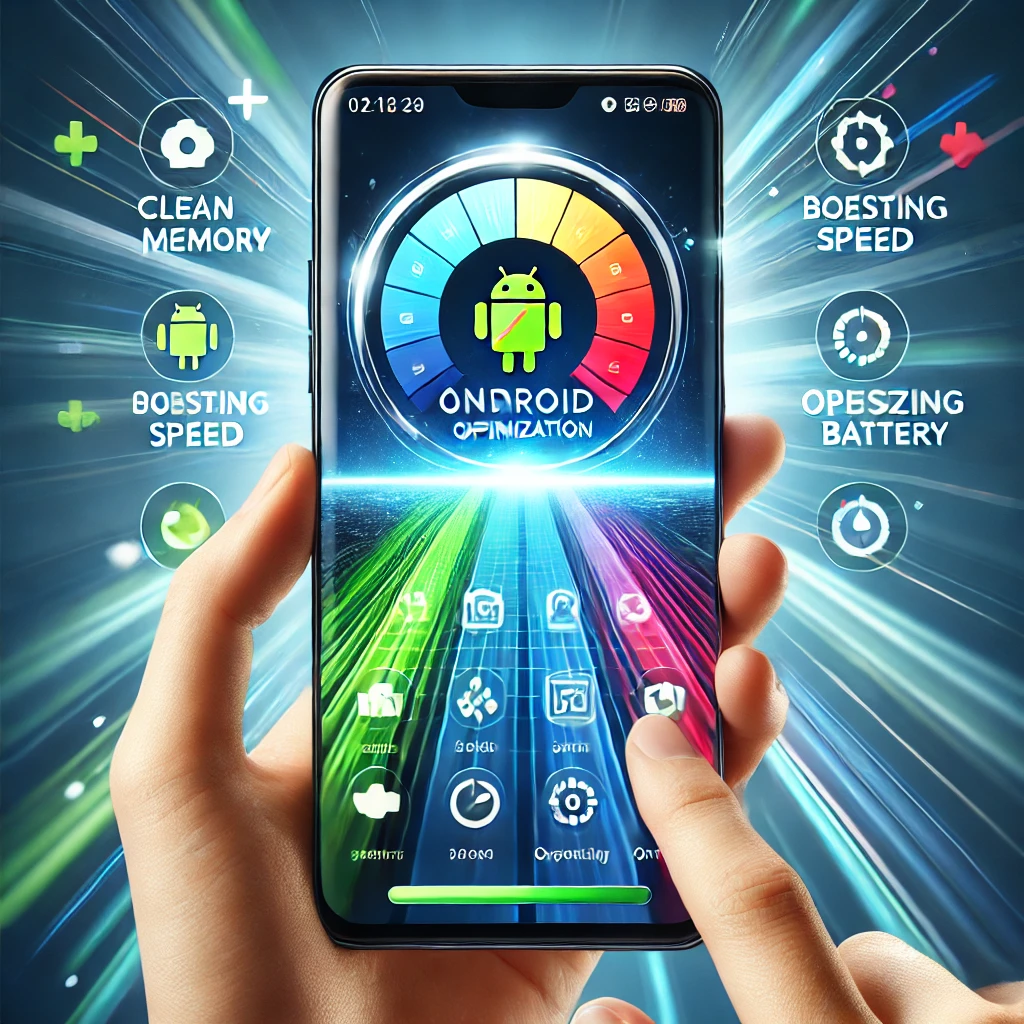
An optimization application does three concrete things: frees up storage (cache, duplicates, remnants of uninstalled apps), shows who is taking up space and consuming battery. It is Makes batch uninstalling easier. This is useful. What it doesn't do is increase processor speed or "add memory." If the advertisement promises more than the list above, you already know what you're reading.
How a free cleaning app makes money
There are four models, and none of them are illegitimate in themselves. What matters is knowing which one you are accepting:
- Announcement. The most common model. The point of attention is the intensity: full-screen ads on every tap, advertising notifications disguised as system alerts, and icons that open ads on their own are abuse, not monetization.
- Subscription or paid version. The most transparent option. You know exactly how much it costs and can cancel whenever you want—in the store, not by uninstalling.
- Data. Collecting identifiers, lists of installed applications, and usage behavior, which are then resold for advertising targeting. Legitimate if stated, and that's exactly what the privacy policy should clearly state.
- Selling the app. A popular app changes ownership, and the new owner changes the rules. This scenario catches the user off guard because nothing changes visually—only what happens behind the scenes.
If you look at an app with tens of millions of installs, no visible ads, no subscription, and no known company behind it, you're probably looking at the third model. That's not an automatic reason to discard it—it's a reason to read the privacy policy first.
The eight evaluation criteria
1. Who published
On the app's page in the store, tap on the developer's name and see what else that account publishes. A company with a real name, its own website, and a coherent portfolio is a good sign. Having fifteen apps in unrelated categories—cleaning, flashlight, wallpaper, matching game—is typical of disposable app factories.
2. Permissions consistent with the function
A cleaner needs access to files and media, and access to usage statistics to list applications. It is not necessary Contacts, SMS, call logs, microphone, camera, and location are all restricted. Any permission not on this list raises questions without a clear answer. On Android, check later in Settings > Apps > the application > Permissions, and revoke any remaining permissions.
3. Privacy policy that can be read
Open the link on the store's page. Three questions: what data is collected, with whom is it shared, and how do I request its deletion? If the link is broken, if the text is so generic that it could apply to any app in the world, or if it's only in English in an app that advertises itself in Portuguese, consider that an answer.
4. Reviews read the right way
The average grade doesn't say much. What matters is the overall score. Recent one- and two-star reviewsIf several people have been complaining about the same thing in recent weeks—unexpected charges, ads that won't close, apps that deleted files—that's real information. Short, generic, and repeated praise in bulk is the opposite: it's the standard for purchased reviews.
5. Size and what it leaves running
There's an irony in this category: many cleaning apps install a permanent background service with a fixed notification to "monitor" the device. In other words, the app hired to save resources ends up consuming resources all the time. After installing, check in Battery how much it uses. If it appears at the top of the list, it's costing more than it's delivering.
6. What does he promise?
The fastest filter of all promises impossible results. "Increases RAM," "cools the processor," "speeds up internet," "doubles the battery," "recovers any file": none of this is possible with software on a regular cell phone. The app stores themselves prohibit advertising functions that the application is not capable of performing—meaning that anyone advertising this way is already breaking the rules before you even install it.
7. How much does it really cost?
Before accepting a free trial, check the store's purchase list within the app—it's mandatory and shows the price range. Trials with automatic renewal are the market standard; note the renewal date on the same day. And remember: Uninstalling the app does not cancel the subscription.. Cancellation can be done in the Play Store, under "Payments & Subscriptions," or on your iPhone, in Settings, under your name, in "Subscriptions.".
8. Is it possible to get out clean?
Before relying on an app, check if you can delete your account from within the app and if uninstallation is simple. Apps that request device administrator permission to function are the most annoying: as long as this permission is active, the system won't allow uninstallation. If a cleaner app asks for this, deny it—it doesn't need it.
Warning signs that don't require analysis.
- Notifications that look like system warnings — "your phone is infected," "damaged battery" — are actually advertisements.
- A countdown timer or visual alarm creates a sense of urgency, prompting you to touch it without reading.
- Installation file downloaded from outside the official store.
- Accessibility permission request without clear explanation. This permission allows screen reading and simulated touches; it is the most powerful permission in Android and a favorite of malicious programs.
- An application that changes its name or icon after being installed.
- A copy with a name almost identical to that of a famous computer program. It's the most common imitation in this category.
The lesson that the category has already taught.
For years, the two most recommended names in texts about speeding up Android were... CleanMaster and the DU Speed Booster. Both had hundreds of millions of installations, high ratings, and appeared on every list. Today, Clean Master and the entire portfolio of DU They are no longer on the Play Store — they have been removed.
The practical lesson is straightforward: The number of installations and a high rating are no guarantee of anything.. These are measures of past popularity. If you find one of these names offered on a download site today, the file doesn't come from the original developer—and installing programs from outside the store is exactly the behavior this entire article is trying to prevent.
Functions that are valid and functions that are not.
- OK: Locate duplicate files and large media, list residual files from uninstalled applications, show usage per application, uninstall multiple apps at once, schedule cache cleaning.
- That's not fair: "RAM boost" button, processor "cooler," "game accelerator," "battery optimizer" that only closes processes, and built-in antivirus in a cleaner.
- It depends: Data saving and app blocking are legitimate features, but many devices already offer both through the system itself — it's worth checking before installing something just for that reason.
The alternative that is already on the device
It's worth comparing the candidate against what Android already delivers out of the box. In Settings > Storage There is a panel divided by category and a "free up space" button, which suggests what is safe to delete. Settings > Battery There is consumption via the app. In Settings > Apps, By sorting by size, you can find the champion and clear its cache. And in the Play Store, under "Manage apps and devices," there's a screen with suggestions for freeing up space.
This suite covers most of what a cleaner would do, without installing anything, without ads, and without granting third-party access to your files. Installing an app makes sense when it solves something these screens don't—primarily searching for duplicate files. Otherwise, it's a waste of resources to save resources.
The store's information sheet says more than it seems.
Before even clicking "Install," the app's page already provides four pieces of information that most people never open—and which are worth more than the average rating.
- The data security section. The Play Store requires developers to declare what the app collects, what it shares with third parties, whether the data is transmitted encrypted, and whether deletion can be requested. The App Store has an equivalent privacy framework. It's a declaration from the developer, not an audit—but precisely for that reason, what's there is the minimum they admit to doing. A cleaner that declares the collection of location or identifiers for advertising has already answered the question of how it sustains itself.
- The list of permissions, before installing. The application details what it can request. Compare this to the following function: files and media, yes; contacts, SMS, calls, microphone, and location, no.
- The date of the last update and the version history. A system app that hasn't been updated for over a year is considered abandoned. Without updates, it doesn't keep up with Android's changes and becomes an open door to problems.
- In-app purchases. The page shows the price range of the items. If a "free app" lists a weekly subscription, you already know what the first screen will be after installation.
A common pitfall: a name almost identical to that of a famous computer program, with a similar icon and a different developer. Before installing, check the developer's name—it's the part the copy can't imitate.
Try it for a week before you trust it.
Choosing based on the store's description is guesswork. Choosing based on measurement is a decision, and testing requires five minutes of note-taking.
- Before installing, Note two numbers: how much free space you have (on the storage screen) and how much screen time the battery usually lasts on a normal day.
- Install just one. Two cleaners working at the same time make it impossible to know who is to credit or blame.
- Grant the minimum. Allow access to files and media and stop there. If the app insists on accessibility or device administrator privileges to function, the test is over.
- Use for seven days without changing anything else. Pay attention to the behavior: how many full-screen ads appear, whether it sends notifications that look like system alerts, and whether it installs extra icons.
- On the seventh day, compare. The actual amount of free space gained — excluding the trash bins you emptied yourself — and the app's position on the battery usage screen. If it appears among the biggest consumers, it's costing more than it's delivering.
The result is usually one of three things: the app found something that the native screens couldn't find (it stays), it didn't find anything beyond what the system already showed (it leaves), or it spent the week asking for a subscription and showing ads (it leaves the same day).
How to remove a cleaner that went wrong
Uninstalling isn't always as simple as tapping and holding the icon. If the app is rooted, the procedure is as follows:
- Revoke accessibility permission, In Settings > Accessibility, if you have enabled it. While it is active, the app retains the ability to read the screen and simulate touches.
- Disable device administrator privileges., In Settings > Security > Administrative apps, with this permission enabled, the system simply won't allow uninstallation.
- Delete the account within the app., If you created one, do so before removing it—it becomes much more difficult after uninstallation.
- Uninstall and cancel your subscription in the store., in that order or in reverse, but never just the first part.
- Whether he reappears or doesn't leave, First, restart in safe mode: in this mode, Android only loads the factory-installed apps, and third-party applications are disabled, allowing you to remove the stubborn one. Then, run the security check from the Play Store itself.
Finally, review any remaining permissions on your device and the authorized notifications. It's common for an app to close, but the permission to display on other screens remains, granted to something you don't even remember anymore.
Questions that arise after installation
The app started showing full-screen ads outside of the app itself. Is this normal?
This is not normal and is grounds for uninstalling. In-app advertising is part of the free model; advertising that appears alone, on top of other screens, or in the notification bar disguised as a system alert is abusive.
I installed it and my phone became slower. Does that make sense?
Yes. Many phone cleaners leave a permanent service running to monitor the device, with fixed notifications. On entry-level phones with limited memory, this service weighs more than the cleaning it actually delivers.
How do I know if the app is sending my data out?
Absolutely no one knows — no average user can audit that. What can be done is to reduce the surface area: grant only permissions consistent with the function, deny requests to track activity, and favor identifiable developers with a readable privacy policy and consistent data disclosure in the store listing.
Can I trust a cleaner that came pre-installed on the appliance?
The manufacturer's own utilities are usually the best option in this category because they have access to system functions that a third-party app doesn't. The same checks always apply: see what it does, what it promises, and whether the notifications it sends are informational or advertising.
Read also
- Apps to Clean iOS Memory and Speed Up iPhone
- Phone Cleaning App: Best Android Cleaning Options
- Clear Android Memory: 3 Apps and How to Install Them Safely
- Optimize your phone's battery: 5 apps and what each one monitors.
- Cleaning Your Phone's Memory: What Changes Between Android and iPhone
Common questions
Is the cleaning app safe?
Yes, apps from known developers, downloaded from the official store and with appropriate permissions, are safe. The real risk lies in copies with similar names, installations outside the store, and apps that request permissions that the function doesn't justify.
Can I use two cleaners at the same time?
There's no benefit whatsoever. Each installs its own service in the background, and both compete for resources to do the same thing. If you're going to use one, use only one—and uninstall the other.
The app is asking for accessibility permission. Is this normal?
For a screen cleaner, no. This permission was created for screen readers and gives the application the ability to read what appears on screen and simulate touches. It's the most sensitive permission in the system. Deny it and look for another one.
Does uninstalling the app cancel my subscription?
No. The charge will continue until you cancel it in the app store. This is the most common reason for unwanted charges in this category.
How can I tell if the cleaner is making my phone worse?
Check the battery screen a week after installing. If the cleaning app appears among the biggest consumers, it's using more than it's saving. Uninstall it and compare.
What should I do if an app deleted files that I wanted to delete?
Check the trash bins — from the gallery, the file manager, and the cloud service — before anything else. And, from now on, avoid scheduled automatic cleanups: prefer to review the list before confirming.
Conclusion
Choosing a free optimization app is less about finding "the best" and more about knowing how to reject the bad ones. The criteria that stand the test of time are few: identifiable developer, permissions consistent with the function, readable privacy policy, recent negative reviews that have been carefully read, absence of impossible promises, and clarity about the origin of the funding.
Apply these filters and the list of dozens of results shrinks to two or three honest candidates. Before installing any of them, however, do the cheapest test: take a look at the storage and battery screens on Android itself. Many people discover there that they didn't need to install anything.